This article will help you configure Charles to work with Postman so you can view your Requests and Responses in plain text
Prerequisites
- Install Charles
- Make sure you have setup the Charles Root certificate on your Mac before you proceed to the next step
Disable “SSL certification verification” in Postman
Open Postman -> Preferences -> Settings -> General -> switch the “SSL certification verification” toggle to off
Click the “Send” button again to re-send the Request

Enable SSL proxying to view network traffic in plain text
You should now see the encrypted network traffic in Charles. Right-click the Request and select “Enable SSL Proxying” from the dropdown
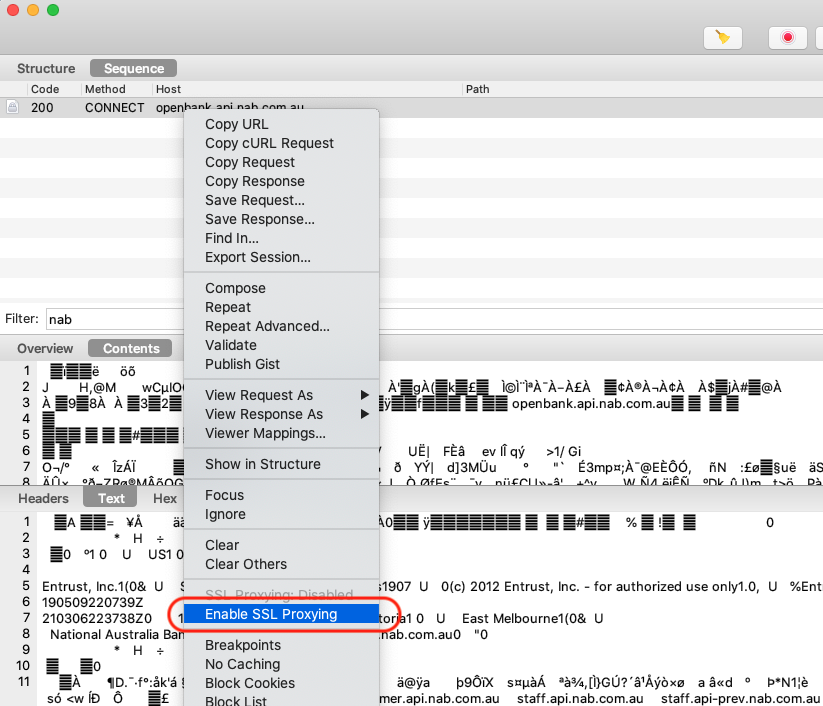
Verify Request appears in plain text in Charles
Return to Postman and click the “Send” button again to send the Request. You should now see Request details appears in plain text


 Charles Docs-y